The Best Smartphone Maintenance Tips You’ll Ever Need
13 August 2026
Most people treat their smartphone like a disposable appliance. They drop it, spill coffee on it, let the battery drain to zero every day, and then wonder why it slows down after eighteen months. The truth is that a smartphone is a精密 piece of engineering with a finite lifespan, but that lifespan is largely within your control. You don't need to be a technician to keep a phone running smoothly for three or four years. You just need to understand a few core principles about how these devices actually work.
This guide is not about wrapping your phone in bubble wrap and never using it. It is about smart, practical habits that prevent the most common causes of premature failure. I have repaired dozens of phones, both my own and for friends, and the same mistakes keep showing up. Let's fix that.
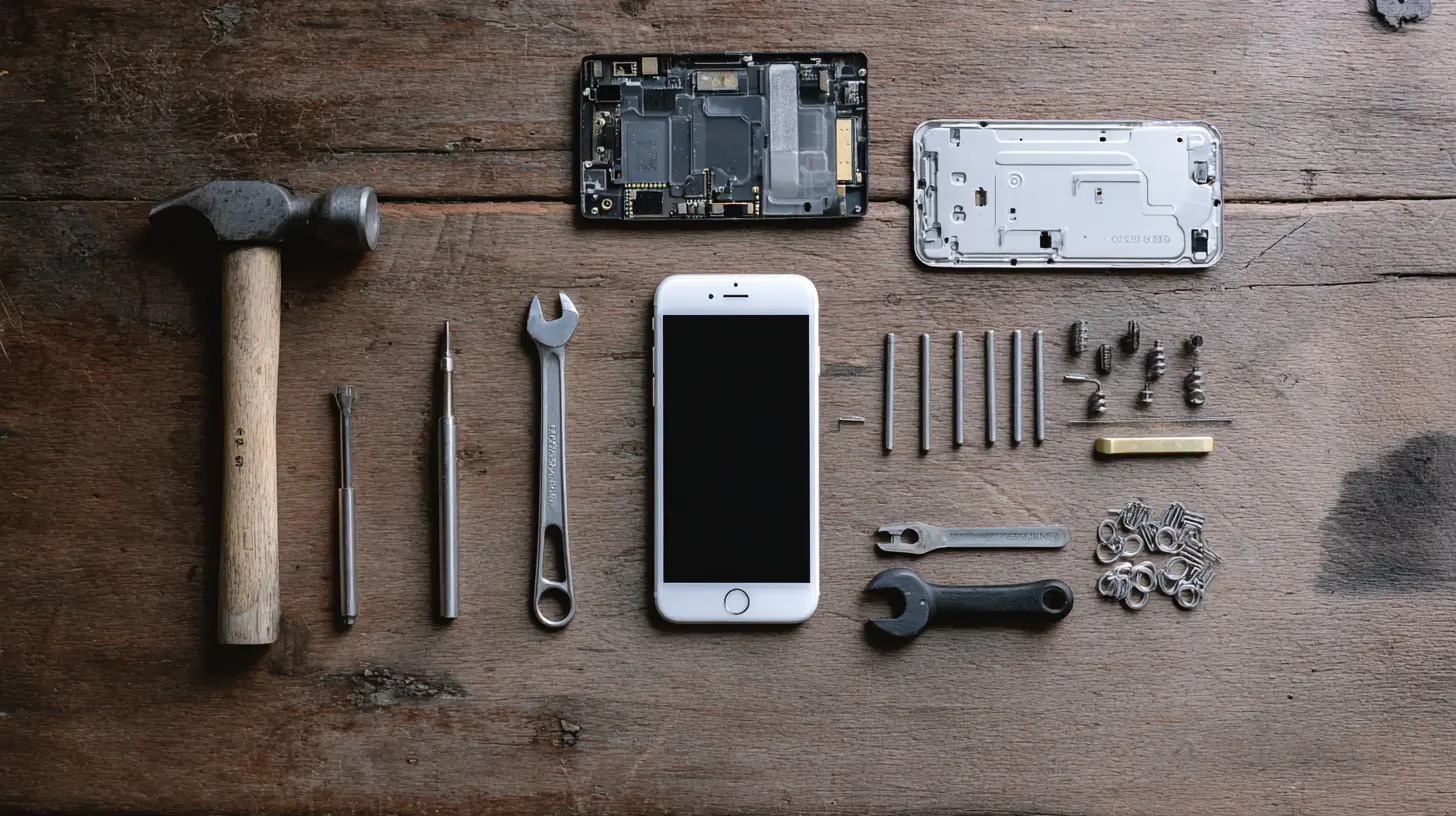
The Battery: Your Phone's Most Fragile Component
The single biggest maintenance issue on any modern smartphone is the battery. Lithium-ion batteries are chemically complex and they degrade with every charge cycle. You cannot stop this process, but you can dramatically slow it down. The key is understanding what actually stresses a battery.Avoid Extreme States of Charge
The worst thing you can do to a lithium-ion battery is keep it at 100 percent for long periods, or let it drop to zero. The chemical reactions inside the cell are most stable between 20 and 80 percent charge. Going beyond those limits puts extra strain on the electrodes and the electrolyte. Over time, this reduces the battery's total capacity.So what does that mean practically? Do not leave your phone plugged in overnight every single night. Yes, modern phones have charging management that stops at 100 percent, but the battery still sits at a high voltage, which is stressful. If you must charge overnight, use a smart plug with a timer, or enable the phone's built-in optimized charging feature if it has one. Both Android and iOS have options to learn your sleep schedule and hold charging at 80 percent until just before you wake up. Turn that feature on.
Similarly, do not run your phone down to zero before charging. The old advice about "deep discharging" a battery to recalibrate it was for nickel-cadmium batteries from the 1990s. Lithium-ion batteries do not have memory effect. In fact, deep discharge causes permanent chemical damage. Charge your phone when it hits 20 or 30 percent, and unplug it when it reaches 80 or 90 percent if you are around to do so.
Heat Is the Silent Killer
Heat is the number one enemy of battery longevity. Leaving your phone on the dashboard of a car in summer, using heavy apps while it is plugged in, or playing graphics-intensive games while charging will push the internal temperature well above safe levels. At 45 degrees Celsius (113 degrees Fahrenheit), lithium-ion batteries start losing capacity at an accelerated rate. At 60 degrees, you risk permanent damage or even swelling.I have seen a phone battery swell so badly that it popped the screen off the frame. That phone had been used for GPS navigation in a car mount with the sun beating on it for three hours. The user thought it was just a slow charger. It was actually thermal damage.
Real-world advice: if your phone feels hot to the touch, take it out of the case and let it cool down. Do not charge it while you are playing a game. Do not keep it under a pillow. And if you live in a hot climate, avoid direct sunlight on the device for long stretches. A phone case can insulate heat, so if you are doing something demanding, remove the case temporarily.
Charging Speed: Fast Is Convenient, Not Always Better
Fast charging is great when you are in a hurry, but it generates more heat than slow charging. If you charge your phone overnight or while you are working at a desk, use a standard 5-watt or 10-watt charger instead of the 65-watt brick that came with it. The slower charge rate will keep the battery cooler and extend its life.That said, do not obsess over this. If you need a full charge in twenty minutes, use the fast charger. The convenience is worth the minor extra degradation. The key is to not use fast charging as your default all the time. Use it when needed, use slow charging when you have time.
Wireless Charging: Convenient but Inefficient
Wireless charging is wonderful for convenience but it generates more heat than wired charging. The energy transfer is not perfectly efficient, and the wasted energy becomes heat. If you use a wireless charging pad, make sure it has a cooling fan or at least good ventilation. Do not place your phone on a wireless charger in direct sunlight or in a hot room.Also, check your phone's temperature after wireless charging. If it feels noticeably warm every time, that is a sign the pad is not working well with your device. Some cheap pads have poor coil alignment, which wastes energy and creates unnecessary heat.
Software Maintenance: More Important Than You Think
Hardware is only half the story. A phone that runs poorly feels old even if it is physically perfect. Software maintenance is about keeping the operating system and apps from clogging up your storage and draining your battery.Update Your Operating System, But Not Immediately
Operating system updates are a double-edged sword. On one hand, they contain security patches and bug fixes. On the other hand, a brand-new major OS version often has bugs that can cause battery drain or performance issues. The best practice is to wait about two to three weeks after a major OS release before updating. This gives the manufacturer time to fix the most obvious problems. For minor security updates, install them right away.Do not skip updates entirely. Outdated operating systems are the most common way phones get malware. The security patches are not optional. They are essential maintenance, just like changing the oil in a car.
Clean Up Storage Regularly
A full storage drive slows down your phone more than you might think. When the internal storage is over 90 percent full, the system has to work harder to find space for temporary files, cache, and app data. This causes lag, app crashes, and sometimes even system freezes.Set a monthly reminder to do a storage cleanup. Delete old photos and videos that are already backed up to cloud storage. Clear the cache for apps that you use heavily, like social media apps and browsers. Uninstall apps you have not used in three months. You will be surprised how much space they take up, especially games and streaming apps.
On Android, go to Settings, then Storage. On iOS, go to Settings, then General, then iPhone Storage. Both systems will give you recommendations for large files and unused apps. Follow those suggestions, but also manually review your photo library. Those screenshots you took for a shopping list three years ago are still sitting there.
Manage Background App Refresh
Apps that run in the background consume battery and data. Most apps do not need to refresh constantly. Social media apps, in particular, are notorious for background activity. They fetch new content, update location, and send notifications even when you are not using them.On iOS, go to Settings, General, Background App Refresh, and turn it off for everything except essential apps like messaging or email. On Android, go to Settings, Apps, and look for "Battery" or "Background activity" for each app. You can restrict background activity for apps that do not need it.
The trade-off is that you may see slightly delayed notifications or need to pull-to-refresh manually. That is a small price for significantly better battery life.
Restart Your Phone Weekly
This sounds too simple to be true, but restarting your phone once a week fixes a surprising number of issues. The operating system accumulates memory leaks, background processes that never fully close, and network connections that get stuck. A restart clears all of that. It is like taking a deep breath after a long day.If your phone feels sluggish, a restart is the first thing to try, before you buy a new phone. I have seen phones that were "dying" suddenly become responsive again after a simple reboot.
Physical Protection: Prevention Is Cheaper Than Repair
You do not need a military-grade case, but you do need some basic protection. The most common damage is a cracked screen, followed by water damage and broken charging ports.Screen Protectors: Not All Are Equal
A tempered glass screen protector is worth the money. It absorbs impact that would otherwise crack your actual screen. The cheap plastic film protectors do not provide impact protection. They only prevent scratches. If you want real protection, use tempered glass.The trade-off is that a glass protector adds a bit of thickness and can reduce touch sensitivity slightly. But modern protectors are so thin that most people do not notice the difference. Buy a good one from a reputable brand, not a two-dollar generic from a gas station. The adhesive quality and glass hardness matter.
When you apply the protector, clean the screen thoroughly first. Dust particles under the glass will cause bubbles and reduce touch accuracy. Use the dust removal stickers that come with the kit, and apply in a bathroom with the shower running hot for a few minutes. The steam settles dust in the air, giving you a cleaner surface.
Cases: Protection vs. Bulk
A case is a personal choice. Some people hate the added bulk. Others want a rugged case that can survive a drop from a second-story window. The middle ground is a slim case with raised edges around the screen and camera. Those raised edges are crucial. They keep the screen and camera lens from touching flat surfaces, which prevents scratches.If you work in construction or spend time outdoors, get a rugged case with a built-in screen protector. It is ugly and bulky, but it will save you hundreds of dollars in repairs. If you work in an office, a slim case is fine. The key is to have some case. A bare phone is a cracked phone waiting to happen.
The Charging Port Is a Dust Magnet
The charging port is the most overlooked part of a phone. Pocket lint, dust, and debris accumulate in the port over time. This causes loose connections, slow charging, and eventually a port that stops working entirely.Clean your charging port every few months. Use a wooden toothpick or a plastic spudger, never a metal pin. Metal can short-circuit the contacts and cause permanent damage. Gently scrape out the lint from the bottom of the port. You will be amazed at how much comes out. If your phone has been charging slowly, this is often the fix.
Do not use compressed air. It can push debris deeper into the port. And absolutely do not blow into the port with your mouth. The moisture in your breath is bad for the contacts.
Water Damage: It Is Not Just About Swimming
You do not need to drop your phone in a pool to get water damage. Steam from a hot shower, rain, or a sweaty pocket can cause issues over time. Most modern phones have IP68 water resistance, which means they can survive submersion in fresh water up to a certain depth. But that rating is for new phones. The rubber gaskets and adhesives that provide water resistance degrade over time. A two-year-old phone with a cracked screen has no water resistance at all.If your phone gets wet, do not plug it in. Power it off, dry the outside with a towel, and put it in a bag of uncooked rice. The rice method works, but it is slow and leaves dust in the port. A better option is silica gel packets, which you can buy in bulk. Put the phone in a sealed container with several silica packets for 24 to 48 hours. This draws out the moisture effectively.
Do not use a hairdryer or put the phone in an oven. Heat will damage the internal components. Be patient. A slow drying process is the safest.
The Camera and Lens: Keep It Clean
The camera lens on modern phones is made of glass, but it still collects fingerprints, dust, and grease. A dirty lens produces hazy, low-contrast photos. Most people blame the camera quality when the real issue is a smudged lens.Clean the lens with a microfiber cloth, the same type you use for eyeglasses. Do not use your shirt. Shirt fabric can scratch the lens coating. If there is stubborn grime, use a lens cleaning solution that is alcohol-free. Apply the solution to the cloth, not directly to the lens.
Also, check the area around the camera module. Dust can accumulate in the small gap between the lens ring and the glass. Use a soft brush or a dry cotton swab to clean that area. Do not use a wet swab near the camera opening.
Storage and Backup: Protect Your Data
Maintenance is not just about hardware. It is also about your data. A phone that dies completely is a disaster if you have not backed up your photos, contacts, and documents. You need a backup strategy that runs automatically.Cloud Backup: The Easiest Option
Both iOS and Android have built-in cloud backup. Enable it. Go to Settings, your name, iCloud on iOS, or Settings, Google, Backup on Android. Make sure photos, contacts, and app data are set to back up automatically. This is the single most important maintenance task you can do.The trade-off is cloud storage costs money after the free tier. A 200GB plan from Apple or Google costs roughly three dollars a month. That is cheap insurance for your entire digital life. If you do not want to pay, use a free option like Google Photos with compressed quality, or back up to a computer manually once a week.
Local Backup: The Safety Net
Cloud backup is not perfect. If your account gets hacked or the cloud service has an outage, you are stuck. A local backup to a computer or an external drive is a good second layer. Connect your phone to a computer, copy the DCIM folder (photos and videos) to a hard drive, and do this monthly. It takes five minutes.For more advanced users, use an app like Syncthing on Android to automatically sync your files to a home server. This is free and does not rely on any third-party service. It requires some technical setup, but it is the most reliable method.
The Myths That Need to Die
There is a lot of bad advice floating around about phone maintenance. Let us clear up the most common misconceptions.Myth: Closing Background Apps Saves Battery
On both iOS and Android, swiping away apps from the app switcher does not save battery. In fact, it uses more battery. When you force-close an app, the system has to reload it from scratch the next time you open it, which uses more CPU and memory than simply resuming it from the background state.The operating system is designed to manage background apps efficiently. Apps that are not actively doing something are frozen in memory. They use negligible battery. Leave them alone. Only force-close an app if it is misbehaving, like playing audio when it should not, or if it is stuck.
Myth: You Need to Let the Battery Drain to Zero Once a Month
This was true for nickel-based batteries, not lithium-ion. Modern smartphone batteries do not need calibration. The battery percentage reading is already accurate. Draining to zero causes chemical stress and reduces lifespan. Do not do it.Myth: Cheap Chargers Always Damage Your Phone
A cheap charger that is certified (look for MFi for Apple or USB-IF for Android) is fine. The damage comes from uncertified chargers that do not regulate voltage properly. These can send too much current or produce inconsistent voltage, which can damage the battery or the charging circuit. Stick to chargers from reputable brands, even if they are inexpensive. Anker, Baseus, and Aukey make quality chargers at low prices.When to Replace Your Phone vs. When to Repair
There comes a point when maintenance is no longer worth it. If your battery health is below 80 percent, you will notice significant battery drain. A battery replacement costs 50 to 100 dollars depending on the model. That is usually worth it if the phone is otherwise in good condition.If the screen is cracked but the phone works, a screen replacement might cost more than the phone is worth. For a budget phone, just replace it. For a flagship that is two years old, a screen repair is often worth it.
If the charging port is broken, that is a more serious repair. It requires soldering and is not always cost-effective. If the port fails, first try cleaning it as described above. If that does not work, you might need to use wireless charging as a temporary solution and plan for a new phone.
A Weekly Maintenance Routine
You do not need to spend hours maintaining your phone. A simple weekly routine takes less than ten minutes and prevents most issues.1. Restart the phone.
2. Check storage usage and delete any large unneeded files.
3. Clear the cache on your most-used apps.
4. Clean the screen and camera lens with a microfiber cloth.
5. Check the charging port for lint.
6. Make sure cloud backup ran successfully.
That is it. Monthly, do a deeper cleanup: uninstall unused apps, review app permissions, and clean the charging port with a toothpick.
The Bottom Line
Your smartphone is a tool, not a treasure. It will wear out eventually. But with a few simple habits, you can get two to three extra years of reliable use out of it. The battery is the most fragile part, so treat it with respect. Keep the software clean and updated. Protect the physical hardware with a case and screen protector. Back up your data religiously.None of this requires special skills or expensive equipment. It just requires consistency. Spend ten minutes a week on maintenance, and your phone will reward you with years of dependable service. When you finally do upgrade, you will have a phone that still works, which you can sell or give to someone else instead of throwing it in a drawer.
That is the real goal. Not just keeping a phone alive, but getting the full value out of the money you spent.
all images in this post were generated using AI tools
Category:
Smartphone TipsAuthor:

Gabriel Sullivan