Voice Assistants Are Getting Smarter: What It Means for Your Home Office
15 August 2026
You probably remember the first time you asked a voice assistant to set a timer or play a song. It felt like magic, then quickly became routine. But the current generation of voice assistants is not just a slightly improved version of that old trick. The underlying technology has shifted in ways that change what these tools can actually do for someone who works from home. This is not about asking Alexa for the weather anymore. It is about having a system that understands context, remembers your preferences, and can execute multi-step tasks without you holding its hand.
The shift is driven by large language models and more sophisticated natural language processing. Instead of matching your words to a fixed script, modern assistants parse intent, handle ambiguity, and even ask clarifying questions. For a home office worker, this means the difference between a glorified egg timer and a genuine productivity partner. But it also means you need to rethink how you set up, use, and secure these tools. Let's get into the specifics.
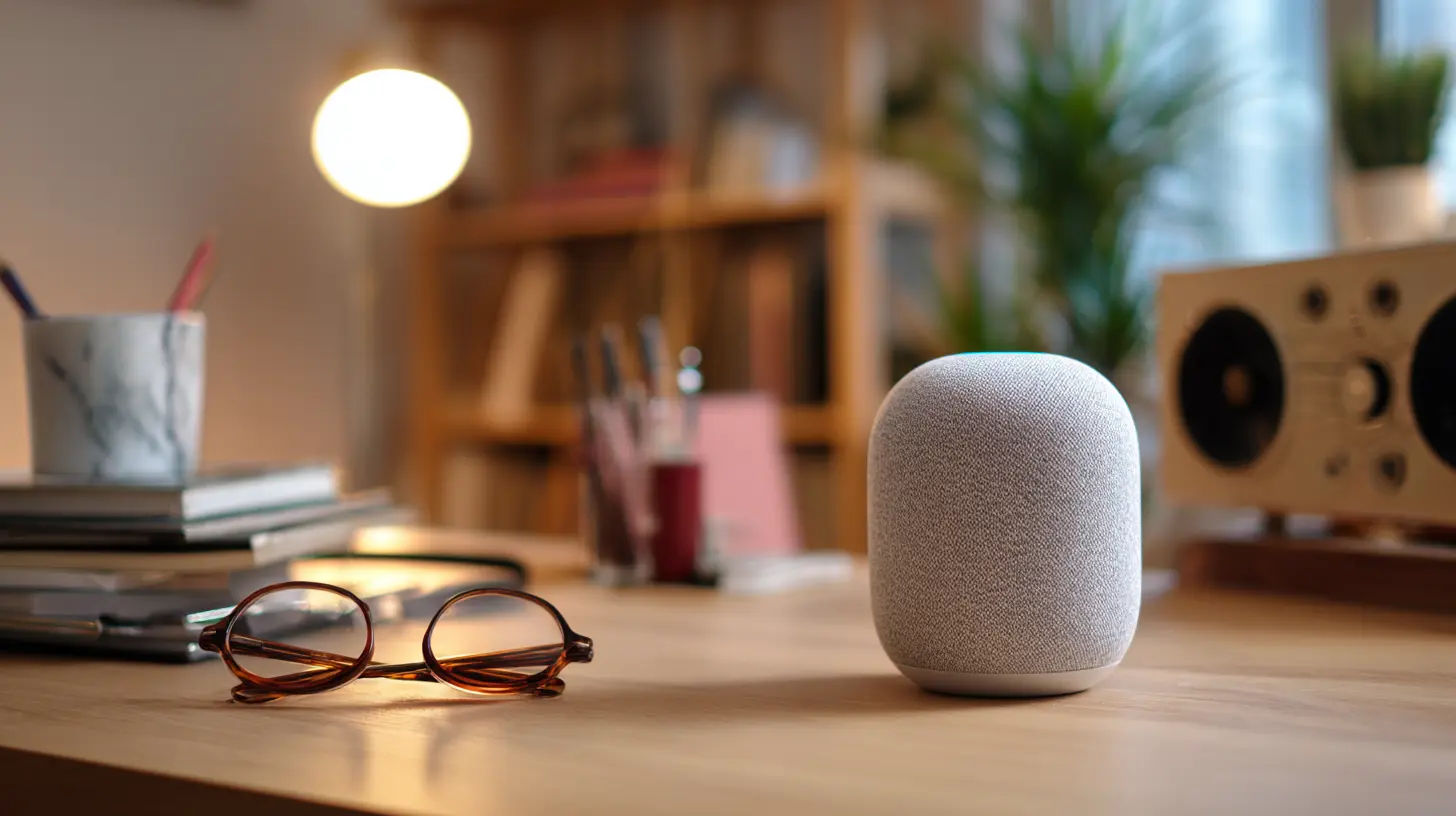
The Real Difference: From Commands to Conversations
The old model of voice interaction was essentially a lookup table. You said a specific phrase, and the assistant executed a specific function. "Set an alarm for 7 AM" worked. "Wake me up at seven tomorrow, but not on weekends" often failed because the system could not parse the conditional logic. The new model, however, treats your words as a request to be understood in context. It can handle follow-up questions, remember what you said earlier in the conversation, and infer missing details.Consider a practical scenario. You are on a video call, and you need to send a quick message to a colleague after the call. With an older assistant, you would say, "Send a message to Sarah." Then you would have to dictate the entire message in one go, without pauses, and hope the system got the punctuation right. With a smarter assistant, you can say, "Send a message to Sarah, tell her the Q3 report is ready, and ask if she wants to review it tomorrow morning." The assistant can parse the recipient, the action, and the time reference. It can even ask, "Should I include the link to the shared drive?" if it knows you usually share files with Sarah.
This conversational ability is not just a convenience. It reduces the cognitive load of switching between apps and typing. When you are deep in a flow state, writing code or drafting a proposal, breaking that focus to type a message costs more than the few seconds it takes. Voice lets you offload small tasks without leaving your primary workspace. The key is to understand that the assistant is now a partner in a dialogue, not a vending machine. You can correct it mid-sentence, change your mind, and it should adapt.
What This Means for Your Daily Workflow
The most immediate benefit for a home office is the ability to handle administrative overhead hands-free. Think about the small, repetitive tasks that eat up your day: checking your calendar, scheduling meetings, adding items to a to-do list, setting reminders, and drafting quick replies. A smarter assistant can do all of these with a single, natural sentence.For example, you might say, "Schedule a project review for next Tuesday at 2 PM, invite the design team, and set a reminder for Monday at 4 PM to prepare the agenda." The assistant needs to access your calendar, look up the design team members from your contacts, create the event, and set a separate reminder. That is a multi-step task that requires integration with multiple apps and an understanding of temporal logic. Modern assistants, especially those tied to specific ecosystems like Google Assistant with Workspace or Siri with Apple's apps, are getting much better at this.
But here is a nuance that many articles miss: the reliability of these multi-step actions depends heavily on the quality of your data. If your contacts are a mess, with duplicate entries and missing emails, the assistant will struggle. If your calendar is full of vague events like "Call" or "Meeting," the assistant cannot infer who the meeting is with. So the first practical step is to clean up your digital house. Spend an hour organizing your contacts, adding titles and departments, and making sure your calendar entries are descriptive. The smarter the assistant becomes, the more it relies on the structure of your data.
Another workflow win is in note-taking. Instead of typing notes during a meeting, you can record the audio and have the assistant transcribe and summarize it. This is not just about speech-to-text; the new models can identify action items, decisions, and key discussion points. You can say, "Summarize the last thirty minutes of the meeting and list the action items." The assistant will not only transcribe but also generate a structured summary. This is a massive time saver, but it requires a quiet environment and a decent microphone. If you are in a noisy home office, the transcription quality will suffer, and the summary will be unreliable. Invest in a good USB microphone or a headset with a noise-canceling boom, not just for your calls but for your voice assistant.
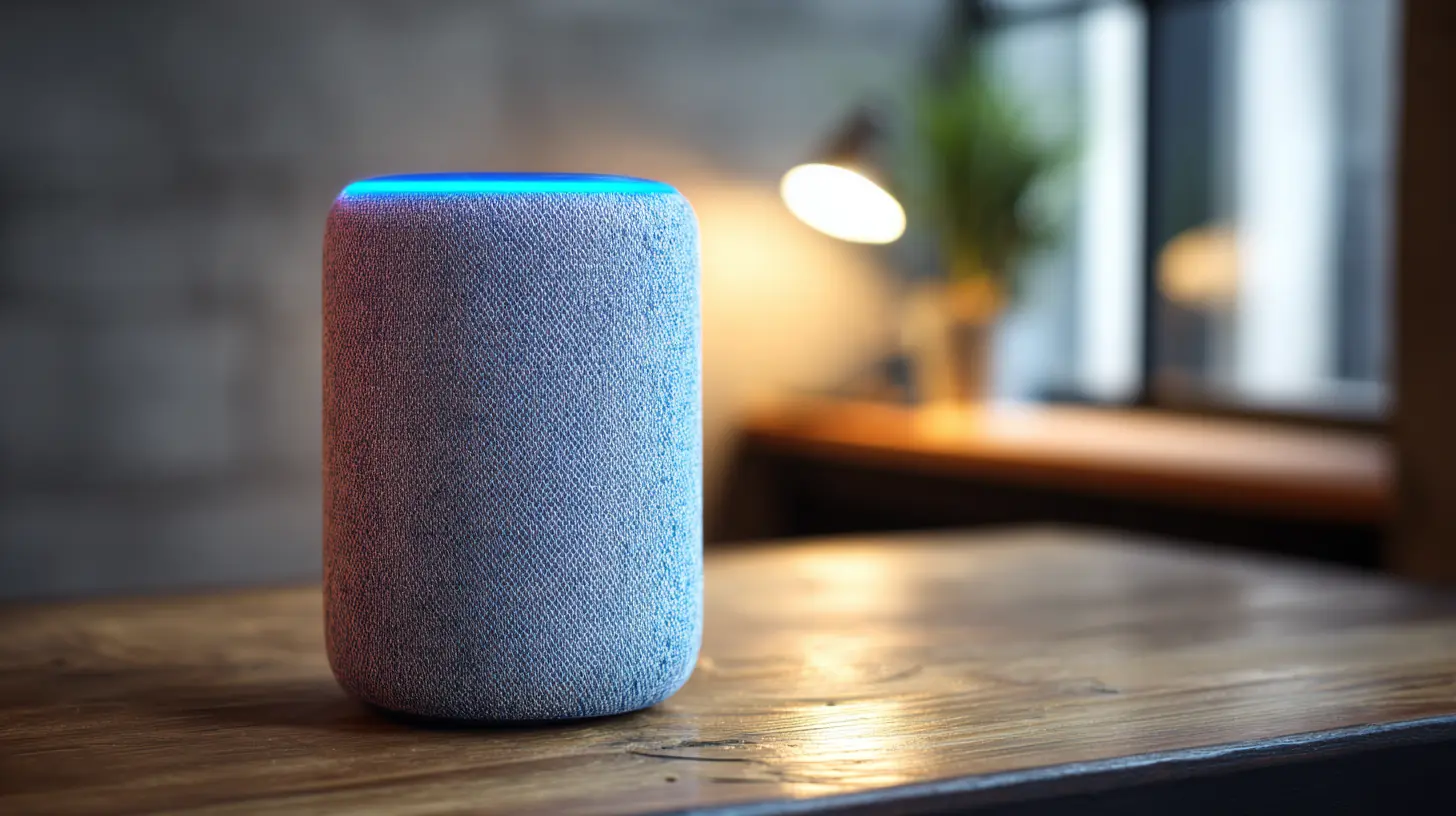
The Hardware Reality: It Is Not Just Software
You cannot get the full benefit of a smarter voice assistant with a cheap smart speaker from five years ago. The microphones and processing power matter. The newer devices have far-field microphones that can pick up your voice across a room, even with background noise. They also have on-device processing for basic commands, which reduces latency and improves privacy. If you are using an older Echo or Google Home, you might find that the assistant misunderstands you more often, not because the software is old, but because the hardware cannot capture your voice clearly enough.For a home office, consider a dedicated device like an Echo Show or a Google Nest Hub. The screen adds a visual layer that is surprisingly useful. You can see your calendar, check the weather, view a recipe, or see who is on the incoming call. More importantly, you can read the assistant's responses, which is helpful when you are not sure if it understood you correctly. With a screen, you can quickly glance at the transcription and correct any errors before the assistant takes action.
But be careful about where you place the device. Do not put it in a corner or behind a monitor. The microphones need a clear line of sight to your voice. Place it on your desk, at least a foot away from the wall, and away from any fans or air conditioners. Test it from different positions in your room. You will be surprised how much the accuracy improves with just a small repositioning.
Another hardware consideration is the integration with your existing peripherals. If you use a high-end headset for calls, can the voice assistant use that same microphone? Some systems can, but many default to the built-in microphone on the smart speaker. Check your settings and make sure the assistant is using the best available microphone. This is a common mistake that leads to frustration, as users blame the software when the issue is simply the audio input.
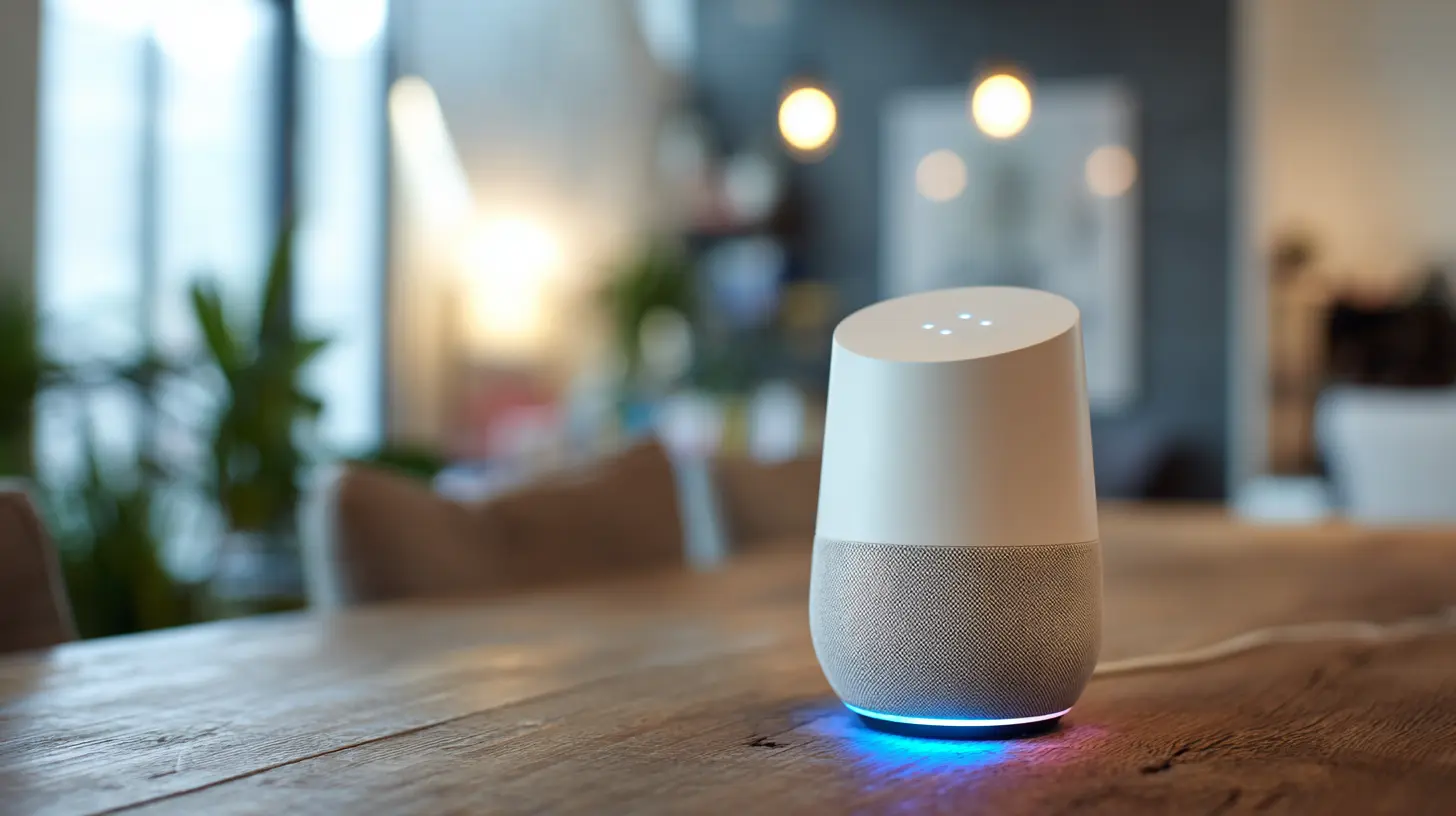
Privacy and Security: The Hidden Cost
This is the part that gets glossed over in most promotional content, but it is critical for a home office. A smarter assistant that understands context and remembers your conversations is, by definition, collecting more data about you. It is not just recording your commands; it is analyzing your speech patterns, your contacts, your calendar, and your email content. For a professional working from home, this data can include confidential client information, proprietary business plans, and personal details.You need to take a hard look at your privacy settings. Most assistants allow you to review and delete your voice history. Some offer a "privacy mode" or a physical mute switch on the device. For sensitive conversations, you should get into the habit of muting the microphone manually. Do not rely on the assistant to know when it should not be listening. It cannot. It is always listening for the wake word, and that means it is processing audio in the background, even if it is not sending it to the cloud.
There is also the issue of third-party integrations. When you connect your assistant to your calendar, email, or project management tools, you are granting it access to those accounts. This is convenient, but it expands the attack surface. If your assistant account is compromised, an attacker could potentially read your emails or schedule fake meetings. Use strong, unique passwords and enable two-factor authentication on your assistant account and the linked services. Also, review the permissions you have granted. You do not need to give the assistant access to your entire email inbox if you only use it for sending quick replies. Grant the minimum access necessary.
A practical approach is to have two separate voice profiles: one for personal use and one for work. Some assistants support multiple users, and you can set up a work profile that has access to your business apps and a personal profile that does not. This separation can prevent accidental cross-contamination of data and make it easier to manage permissions. It is not a perfect solution, but it is a good practice for anyone who takes privacy seriously.
The Integration Problem: Why Your Assistant Still Feels Dumb
One of the biggest frustrations with voice assistants is that they are only as smart as the apps they can control. A great assistant that cannot talk to your CRM is not very useful. The reality is that integration quality varies wildly. Apple's Siri works beautifully with Apple's own apps but struggles with third-party services. Google Assistant has deep integration with Google Workspace, but its support for other platforms is inconsistent. Amazon Alexa has a vast library of skills, but many of them are shallow and poorly maintained.For your home office, you need to decide which ecosystem you are committing to. This is a strategic decision, not a casual one. If you live in the Google ecosystem, using Gmail, Google Calendar, and Google Docs, then Google Assistant is your best bet. If you are an Apple user, Siri is the natural choice, especially with the new on-device processing that makes it faster and more private. If you use Microsoft 365, you might want to look at Cortana, although it has been largely deprecated, or use a third-party solution.
The mistake many people make is trying to use multiple assistants for different tasks. They have an Echo in the kitchen, a Google Nest in the office, and Siri on their phone. This creates a fragmented experience. The assistants do not share context, so you cannot start a task on one and finish it on another. You also end up managing multiple accounts and permissions. It is better to pick one primary assistant and stick with it, even if it means sacrificing a feature or two from another platform.
There is also the issue of custom routines and automation. The real power of a smart assistant comes from chaining multiple actions together. For example, you can create a routine that turns on your desk light, starts your computer, plays your morning playlist, and reads your calendar when you say, "Good morning." This requires a certain level of technical setup, but the payoff is significant. However, the routine only works if the underlying devices are compatible. Check for Matter support, which is the new smart home standard, as it promises better interoperability between devices from different manufacturers.
Common Mistakes and Misconceptions
Let's address some of the myths that persist about voice assistants.First, the idea that they can understand you perfectly. They cannot. Even the best systems have error rates, especially with names, technical jargon, and accented speech. Do not assume that because the assistant got one thing right, it will get everything right. Always verify critical actions, like sending an email or scheduling a meeting, before you confirm.
Second, the belief that voice is always faster than typing. It is not. For short, factual inputs like URLs or codes, typing is often faster and more accurate. Voice excels at longer, more descriptive inputs, like dictating a paragraph or giving a complex command. Use the right tool for the job. Do not try to dictate a password or a long alphanumeric string.
Third, the misconception that you need to speak in a robotic, formal tone. The newer assistants are trained on natural conversation, so you can speak normally. In fact, speaking in a natural tone often improves accuracy because the system is better at parsing conversational language than stilted commands. Do not say, "Alexa, set timer for five minutes." Say, "Set a timer for five minutes, please." The assistant will handle it.
Fourth, the assumption that the assistant is a replacement for a human assistant. It is not. It cannot negotiate with a client, empathize with a colleague, or make judgment calls. It is a tool for executing tasks, not for making decisions. Keep your expectations realistic. The goal is to offload the mechanical parts of your work, not to delegate the thinking.
The Future: What Is Coming Next
The current generation of voice assistants is just the beginning. The next few years will bring more proactive assistance. Instead of waiting for you to ask, the assistant will anticipate your needs. For example, it might notice that you have a meeting in ten minutes and automatically pull up the relevant documents, or it might detect that you are running late and send a message to the other party. This proactive behavior is already being tested in some enterprise settings, but it will take time to become reliable.Another trend is the move toward on-device processing. This is a huge win for privacy and speed. Instead of sending your voice data to the cloud, the assistant processes it locally on your device. This reduces latency and ensures that your conversations are not stored on remote servers. Apple has been leading this charge with its on-device Siri, and Google is following suit with its newer Pixel devices. If privacy is a top concern for you, look for assistants that offer on-device processing as a default, not an option.
There is also the emergence of multimodal assistants that can process voice, text, and images simultaneously. You could show the assistant a picture of a whiteboard and ask it to transcribe the notes, or you could point your phone at a document and ask for a summary. This is still early, but the potential for a home office is enormous. Imagine being able to say, "Look at this spreadsheet and tell me which quarter had the highest sales," and having the assistant analyze the image and give you an answer.
Practical Recommendations for Setting Up Your Home Office
If you are ready to take advantage of smarter voice assistants, here is a step-by-step approach.First, choose your ecosystem. Decide whether you are all-in on Apple, Google, or Amazon. Consider the apps you use daily and check which assistant has the best integration. Do not chase the latest gadget; chase the best integration for your workflow.
Second, audit your data. Clean up your contacts, calendar, and email folders. Remove duplicates, add relevant details, and archive old conversations. The assistant is only as good as the data it can access.
Third, invest in good hardware. Get a smart speaker or display with far-field microphones. Position it properly in your office. Consider a dedicated microphone for your computer if you plan to use voice dictation heavily.
Fourth, configure your privacy settings. Turn off voice history if you do not need it. Set up a routine to delete recordings regularly. Use the physical mute switch when you are in confidential conversations.
Fifth, build routines gradually. Start with simple ones, like a morning routine that reads your calendar and plays your news briefing. Then add more complex automations as you get comfortable. Test each routine thoroughly and adjust the phrasing to what works best.
Sixth, integrate with your productivity tools. Connect your assistant to your task manager, note-taking app, and project management software. Use voice to capture ideas quickly, then refine them later on your computer.
Finally, be patient. The technology is good, but it is not perfect. You will have moments of frustration. The key is to learn from the errors and adjust your usage patterns. Over time, you will develop a set of commands and routines that work reliably for your specific needs.
The Bottom Line
Voice assistants are no longer a novelty. They are becoming a legitimate tool for improving productivity in a home office. The shift from command-based to conversational interaction is a real change, not just a marketing buzzword. It enables you to handle complex, multi-step tasks with a single sentence, freeing up your attention for the work that truly requires your expertise.But the technology is not a magic bullet. It requires setup, maintenance, and a clear understanding of its limitations. You need to choose the right ecosystem, organize your data, invest in decent hardware, and be mindful of privacy. If you do that, you will find that your voice assistant can become a reliable partner in your daily workflow, not just a gadget that plays music on demand.
The future is moving toward even more intelligent and proactive assistance. The groundwork you lay now, in terms of data quality and integration, will pay off as the technology improves. Start small, be consistent, and do not be afraid to experiment. Your home office is about to get a lot more efficient.
all images in this post were generated using AI tools
Category:
Home Office TechAuthor:

Gabriel Sullivan