Mastering Mobile Privacy Settings for a Safer Digital Life
8 August 2026
Your smartphone is the most personal device you own. It knows where you sleep, who you talk to, what you buy, how you feel, and often what you type before you finish the thought. The average person checks their phone over 100 times a day, and every single interaction generates data. Most of that data flows to companies you have never met, and some of it flows to people who want to exploit it.
The problem is not that smartphones are inherently insecure. The problem is that the default settings are designed for convenience and data collection, not for your privacy. Manufacturers and app developers make money from your information, so they bury the privacy controls deep in menus, write them in confusing language, and quietly change them after updates. You are not paranoid. You are just outnumbered.
The good news is that you do not need to be a security engineer to take control. You need a clear map of the settings that matter, an understanding of what each one actually does, and the discipline to review them regularly. This guide walks you through that process step by step, with the nuance that most quick tips articles miss.
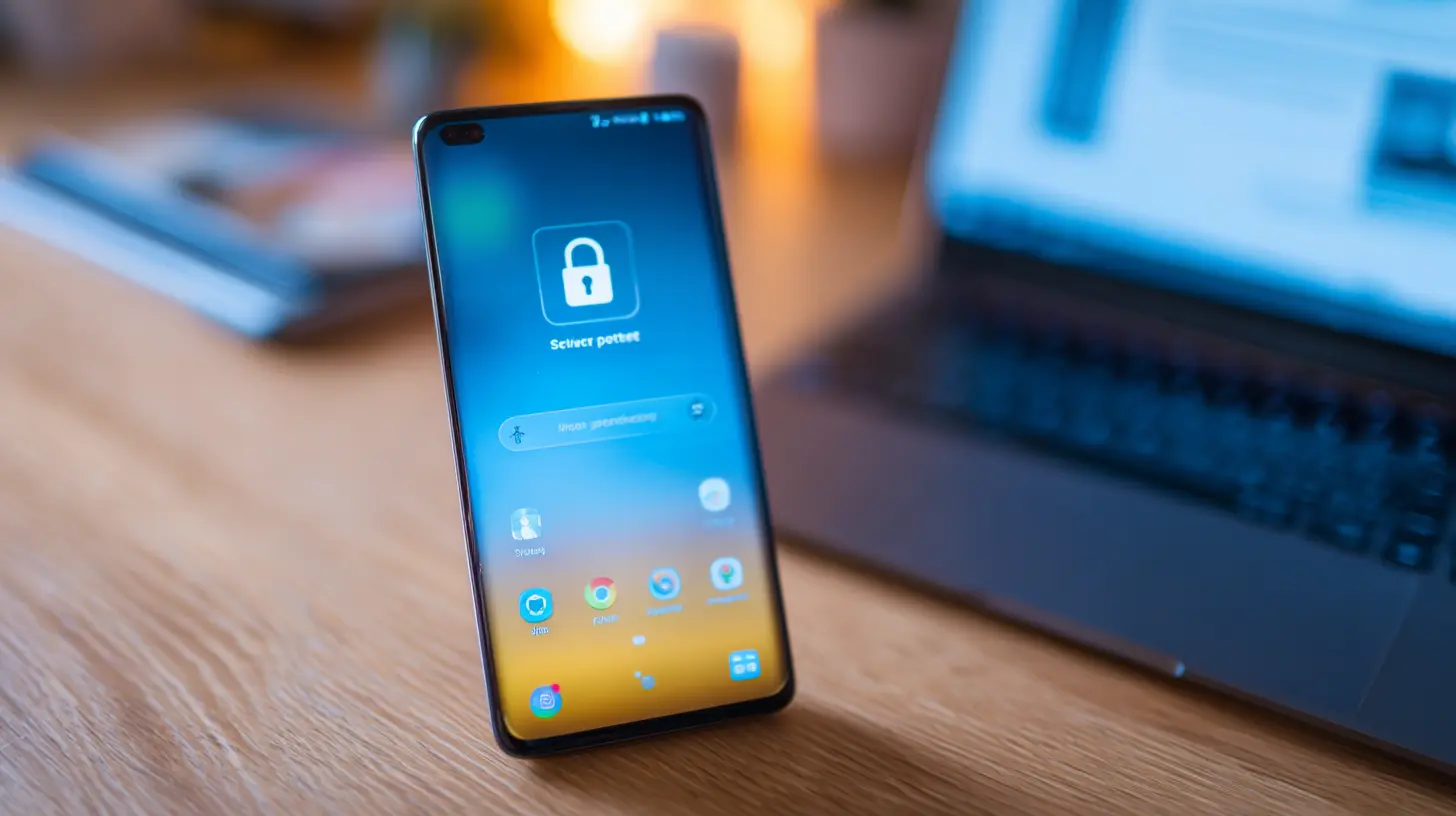
Why Default Settings Are Against You
When you unbox a new phone, the setup wizard asks you a series of questions. Do you want to enable location services? Yes. Do you want to share usage data with the manufacturer? Yes. Do you want personalized ads? Yes. Most people tap through these prompts in under a minute because they just want to get to the home screen.Here is what the defaults actually mean in practice. Location services are on for every app that asks. Your advertising ID is active and shared with every app that requests it. Wi-Fi and Bluetooth scanning are enabled, which means your phone constantly broadcasts its presence to nearby devices. Your photos are backed up to the cloud with location data embedded. Your browser history syncs across devices. Your voice assistant is listening for wake words.
None of this is secret. It is all in the terms of service that nobody reads. But the cumulative effect is that your phone becomes a tracking beacon. Every app you open reports back to its parent company, and those companies often sell that data to data brokers who combine it with other sources to build a detailed profile of your life.
The first step to fixing this is to stop treating privacy as a single switch. It is a collection of decisions, each with trade-offs. Some will cost you convenience. Some will break features you like. The goal is not to lock everything down to the point where your phone is useless. The goal is to make deliberate choices based on what you actually value.
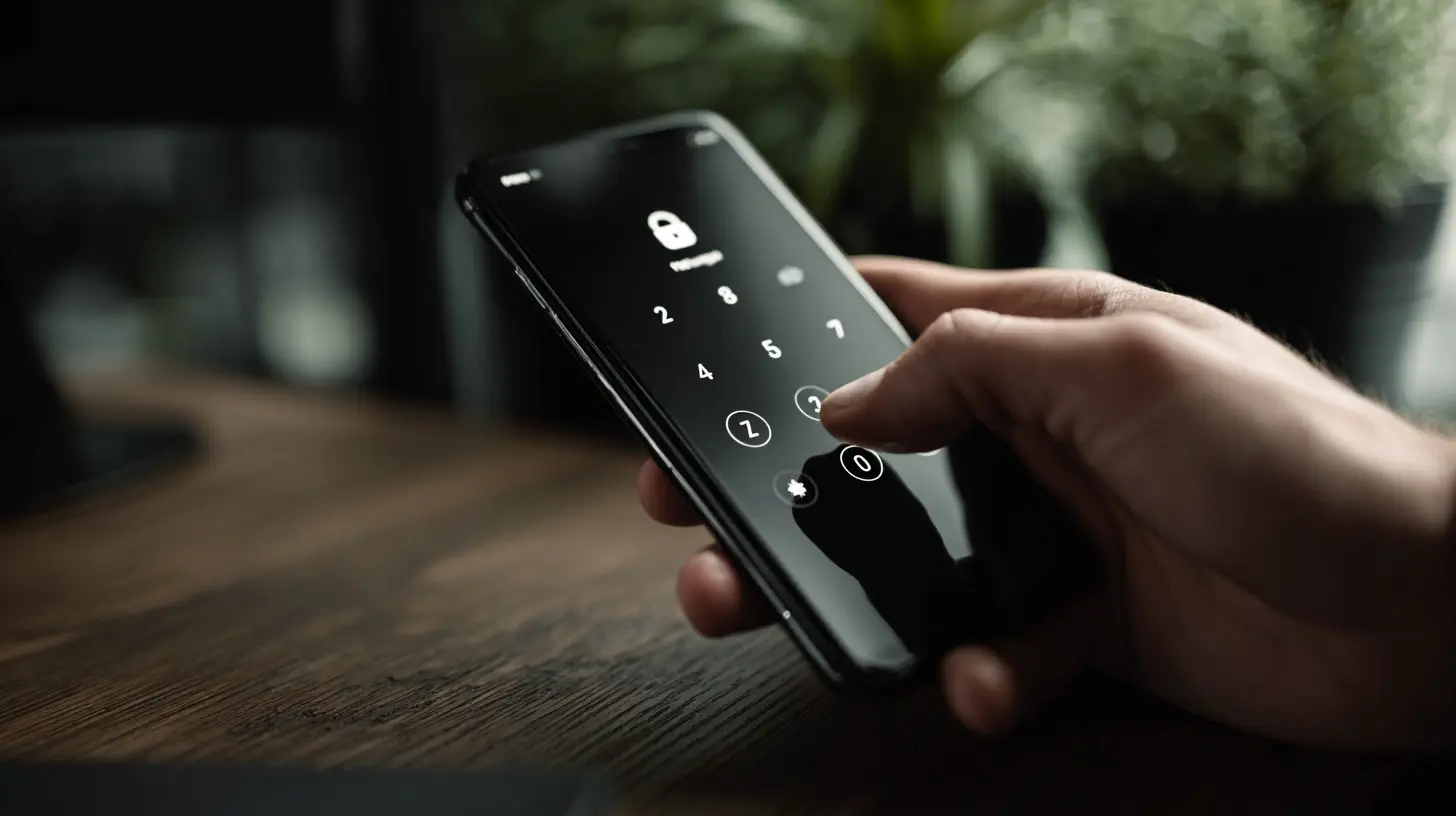
The Core Privacy Settings on iOS and Android
Both major mobile operating systems have improved their privacy controls significantly in recent years. Apple markets privacy as a core feature, and Google has been forced to follow suit. But the two systems approach privacy differently, and understanding those differences helps you make better decisions.App Permissions: The Front Line
The most important privacy setting on any phone is the app permission manager. This controls what each app can access, including your location, camera, microphone, contacts, photos, and calendar. Both iOS and Android let you review and change these permissions at any time.On iOS, go to Settings, then Privacy and Security. You will see a list of categories. Tap each one to see which apps have access. On Android, the path varies by manufacturer, but it is usually Settings, then Privacy, then Permission Manager. The key is to review this list regularly, not just when you install a new app.
Here is the nuance that most people miss. An app can request permission for a legitimate reason, but then use that permission in ways you did not intend. A flashlight app does not need access to your contacts. A game does not need your microphone. A weather app does not need your precise location if it can work with your city. When you see a permission that does not match the app's core function, that is a red flag.
The best practice is to deny permissions by default and grant them only when the app actually needs them. For example, if you use a ride-sharing app, it needs your location while you are waiting for a ride. It does not need your location when you are at home. Both iOS and Android now offer a "while using the app" option for location, which is the right choice for most apps. Some apps also offer "ask next time," which forces a prompt when the app tries to access the data.
Location Services: Precision vs. Approximate
Location data is among the most sensitive information on your phone. It reveals where you live, where you work, where you go to church, where you meet your friends, and when you are away from home. A week of location data is enough to identify you with high confidence, even if the data is anonymized.Both operating systems now let you choose between precise and approximate location. This is a huge improvement. For apps that only need a general area, like a news app showing local headlines, approximate location is sufficient. For apps that genuinely need your exact position, like navigation or food delivery, precise location is necessary.
The mistake people make is choosing precise location for every app because it seems easier. That is a privacy disaster. A shopping app does not need to know your exact coordinates. It needs to know your city to show local stores. Set most apps to approximate location and reserve precise location for the few that truly need it.
Also, turn off location history if you can. On Android, this is called Location History and it is tied to your Google account. On iOS, it is called Significant Locations, and it is stored on your device. These features remember where you go and how long you stay, which is exactly the kind of data you do not want sitting around. You can delete the history and turn off the feature entirely.
Camera and Microphone Access
Camera and microphone permissions are the ones that cause the most anxiety, and for good reason. A compromised app with camera access can record you without your knowledge. The same goes for the microphone.The good news is that both systems now show an indicator when an app is using the camera or microphone. On iOS, you see a green dot for the camera and an orange dot for the microphone. On Android, you see a similar icon in the status bar. If you see these indicators when you are not actively using an app, that is a problem.
The practical approach is to review which apps have camera and microphone access and revoke it from anything that does not need it. Social media apps often request microphone access for voice messages or video recording, but they do not need it when you are just scrolling. You can grant access when you want to record and revoke it afterward.
There is also a newer feature on both platforms that lets you block camera and microphone access entirely at the system level. On iOS, this is in the Control Center. On Android, it is in Quick Settings. This is useful when you are in a sensitive conversation or just want to be sure nothing is listening.
Photos and Media Access
Photo access is trickier than it seems. When you grant an app access to your photos, you are giving it access to every photo on your device, unless you use the limited access option. On iOS, you can choose "Select Photos" to let an app see only the specific photos you pick. On Android, the equivalent is "Select photos and videos" in the permission settings.The reason this matters is that photos contain a lot of hidden data. The metadata includes the date, time, and location where the photo was taken. Even if you strip the metadata, the content of the photo itself can reveal information. A photo of your living room shows your furniture, your layout, and possibly your address if there is a mail envelope on the table.
Use limited access for apps that only need a few photos, like a messaging app where you want to send a single image. Use full access only for apps that genuinely need to manage your entire library, like a photo editing app or a cloud backup service.
Contacts, Calendar, and Other Sensitive Data
Contacts and calendar access are often granted without much thought, but they are extremely valuable to data brokers. Your contact list contains names, phone numbers, email addresses, and sometimes physical addresses of everyone you know. A malicious app can harvest this data and use it for spam, phishing, or identity theft.The same logic applies to calendar access. Your calendar reveals your schedule, your meetings, your appointments, and your personal commitments. An app that can read your calendar knows when you are busy, when you are free, and when you are likely to be away from your desk.
The rule of thumb is simple. If an app does not need your contacts to function, do not give it access. A social media app might ask for contacts to help you find friends, but you can skip that step. A calendar app needs calendar access, but a game does not. Review these permissions carefully and revoke anything that seems unnecessary.

Advertising ID and Tracking
Every phone has a unique advertising identifier. This is a string of numbers that lets advertisers track your behavior across apps and websites. It is not your device serial number, but it serves a similar purpose for marketing purposes. When you see ads that follow you around the internet, this identifier is often the reason.Both iOS and Android let you reset or disable this identifier. On iOS, go to Settings, then Privacy and Security, then Tracking. You can turn off "Allow Apps to Request to Track" to prevent apps from asking for permission to track you. On Android, go to Settings, then Privacy, then Ads. You can reset your advertising ID or delete it entirely.
The important thing to understand is that disabling the advertising ID does not stop all tracking. It stops the most obvious form of cross-app tracking, but apps can still collect data about your behavior within their own app. They just cannot link that data to your advertising ID.
There is also a feature called App Tracking Transparency on iOS, which requires apps to ask for permission before tracking you across other apps and websites. This is a significant step forward, but it is not a complete solution. Some apps have found ways to track users without asking for permission, and the system is not always enforced perfectly.

Browser Privacy: More Than Just Incognito Mode
Most people think that incognito mode or private browsing makes them invisible. It does not. Incognito mode only prevents your browser from saving your history, cookies, and form data on your device. It does not hide your IP address, and it does not stop websites from tracking you through other methods.For real browser privacy, you need to take additional steps. First, use a browser that respects your privacy. Safari and Chrome have improved, but they still collect data by default. Consider using a privacy-focused browser like Firefox Focus or Brave, which block trackers by default and do not store your browsing history.
Second, disable third-party cookies. These are cookies that come from domains other than the one you are visiting. They are the primary tool for cross-site tracking. Both iOS and Android browsers let you block third-party cookies in the settings. This will break some websites that rely on them for login or personalization, but the trade-off is worth it for most people.
Third, use a content blocker. These are apps that block trackers, ads, and malicious scripts from loading in your browser. They work by maintaining a list of known trackers and preventing them from running. This not only improves privacy but also speeds up page loading and reduces data usage.
Fourth, consider using a VPN. A VPN encrypts your internet traffic and routes it through a server in another location. This hides your IP address from websites and prevents your internet service provider from seeing what you are doing. However, a VPN is not a magic bullet. The VPN provider can see your traffic, so you need to choose a reputable provider that does not keep logs. Also, a VPN does not protect you from trackers that are embedded in the websites themselves.
The Hidden Dangers of App Clones and Third-Party Stores
One of the biggest privacy mistakes people make is installing apps from unofficial sources. On Android, this means sideloading APK files from random websites. On iOS, this means using third-party app stores or jailbreaking your device. These apps are not vetted by the official app stores, and they often contain malware or hidden trackers.The official app stores are not perfect, but they have review processes that catch the most obvious problems. Third-party sources have no such process. A malicious app can request permissions that seem harmless, then use them to steal your data or infect your device.
If you must sideload an app, be extremely careful. Only download from sources you trust, and check the app's permissions before installing. Also, keep your phone's operating system up to date, because security patches often fix vulnerabilities that malware exploits.
Cloud Backups and Data Synchronization
Cloud backups are convenient, but they are also a privacy risk. When you back up your phone to iCloud or Google Drive, you are sending your photos, messages, contacts, and app data to a server owned by a company. That company can access your data, and so can anyone who gains access to your account.The first step is to enable two-factor authentication on your cloud account. This prevents someone from logging in with just your password. The second step is to check what is being backed up. On iOS, you can go to Settings, then your name, then iCloud, and see which apps are backing up. On Android, go to Settings, then Google, then Backup.
Some data is more sensitive than others. Your messages and photos are the most personal. If you are concerned about privacy, you can choose not to back up these items. You can also use end-to-end encrypted messaging apps like Signal, which do not store your messages on a server.
Another consideration is synchronization across devices. If you use the same browser on your phone and computer, your browsing history, passwords, and cookies sync between them. This is convenient, but it also means that a compromise on one device affects the other. Consider turning off sync for sensitive data like passwords and payment information.
App Permissions You Should Revoke Right Now
If you want to take action immediately, here are the permissions you should review and likely revoke on your phone right now.First, check which apps have access to your microphone. Revoke access from any app that does not need it for voice recording or voice calls. Second, check which apps have access to your camera. Revoke access from any app that does not need it for taking photos or video calls. Third, check which apps have access to your precise location. Change most of them to approximate location.
Fourth, check which apps have access to your contacts. Revoke access from any app that does not need it for messaging or calling. Fifth, check which apps have access to your photos. Change most of them to limited access. Sixth, check which apps have access to your calendar. Revoke access from any app that does not need it for scheduling.
Seventh, turn off the advertising ID if you can. Eighth, disable third-party cookies in your browser. Ninth, turn off Wi-Fi and Bluetooth scanning if you do not use them. Tenth, disable location history and significant locations.
These ten changes will take about fifteen minutes and will significantly reduce the amount of data your phone shares.
The Trade-Off Between Privacy and Convenience
It is important to be honest about the trade-offs. Some privacy measures will make your phone less convenient. If you turn off location services for a weather app, you will have to enter your city manually. If you disable the advertising ID, you will still see ads, but they will be less relevant. If you block third-party cookies, some websites will not remember your login preferences.The question is whether the convenience is worth the privacy cost. For most people, the answer is that some convenience is worth giving up. You do not need to lock everything down. You need to find the balance that works for you.
A good approach is to start with the most sensitive data and work outward. Location, camera, microphone, contacts, and messages are the highest priority. Photos and browsing history are next. Less sensitive data, like app usage statistics and device information, can be shared if it improves the experience.
Common Mistakes and Misconceptions
There are several misconceptions about mobile privacy that lead people to make poor decisions. The first is that a VPN makes you anonymous. It does not. A VPN hides your IP address from websites, but the VPN provider can see your traffic. Also, websites can still track you through cookies and browser fingerprinting.The second misconception is that deleting an app removes your data. It does not. The app's developer still has the data they collected, and they may have already sold it to third parties. Deleting the app only stops future data collection.
The third misconception is that free apps are safe because they are free. They are not. Free apps make money by selling your data or showing ads. If you are not paying for the product, you are the product. This does not mean all free apps are malicious, but it means you should be more careful about what you share with them.
The fourth misconception is that privacy settings are a one-time thing. They are not. Apps update, operating systems change, and new features are added. You need to review your privacy settings regularly, at least once a month, to make sure nothing has changed.
A Practical Routine for Ongoing Privacy
Privacy is not a destination. It is a practice. Here is a routine that takes about ten minutes a month and keeps your phone reasonably private.First, review the app permission manager and revoke any permissions that seem unnecessary. Second, check the location services settings and make sure no app has precise location that does not need it. Third, review the camera and microphone access and revoke anything that is not actively used.
Fourth, check your browser settings and make sure third-party cookies are still blocked. Fifth, review your cloud backup settings and make sure you know what is being backed up. Sixth, check for app updates and install them, because updates often include security fixes.
Seventh, review the list of apps you have installed and delete any that you no longer use. Unused apps still collect data in the background. Eighth, check your advertising ID and reset it if you have been seeing a lot of targeted ads.
This routine is not exhaustive, but it covers the most important areas. The key is consistency. A single privacy audit is not enough. You need to make it a habit.
Conclusion
Your smartphone is a powerful tool, but it is also a powerful tracker. The default settings are designed to maximize data collection, not to protect your privacy. Taking control requires effort, but it is effort well spent. You do not need to become a privacy expert. You just need to understand the settings that matter, make deliberate choices, and review them regularly.Start with the permissions that expose the most sensitive data: location, camera, microphone, contacts, and photos. Then move to the advertising ID and browser settings. Finally, consider the broader ecosystem of cloud backups and synchronization. Each change you make reduces your digital footprint and makes it harder for companies and criminals to build a profile of your life.
The goal is not perfection. The goal is awareness. When you know what your phone is sharing, you can decide what you are comfortable with. That is the essence of mastering mobile privacy settings for a safer digital life.
all images in this post were generated using AI tools
Category:
Smartphone TipsAuthor:

Gabriel Sullivan