The Rise of Multi-Screen Workstations and How to Manage Them
19 August 2026
There is a quiet revolution happening on desks everywhere. It is not in the hardware itself, though the hardware is impressive. It is in the way we have come to accept that one screen is no longer enough. The single monitor, once the proud centerpiece of a professional setup, now feels like a narrow window in a room that demands a panoramic view. We have moved, almost without noticing, into an era of multi-screen workstations. And with that shift comes a new kind of cognitive load, a new set of physical demands, and a new need for deliberate management.
The rise of the multi-screen setup did not happen overnight. It crept in through laptops connected to external displays, through developers who needed code on one screen and documentation on another, through traders who watched charts like hawks, through video editors whose timelines stretched wider than any single panel could reasonably show. What started as a niche preference became a standard practice. Now, walking through any modern office, you see desks bristling with panels of varying sizes, resolutions, and orientations. The question is no longer whether to use multiple screens, but how to use them well.
Why We Crave More Pixels
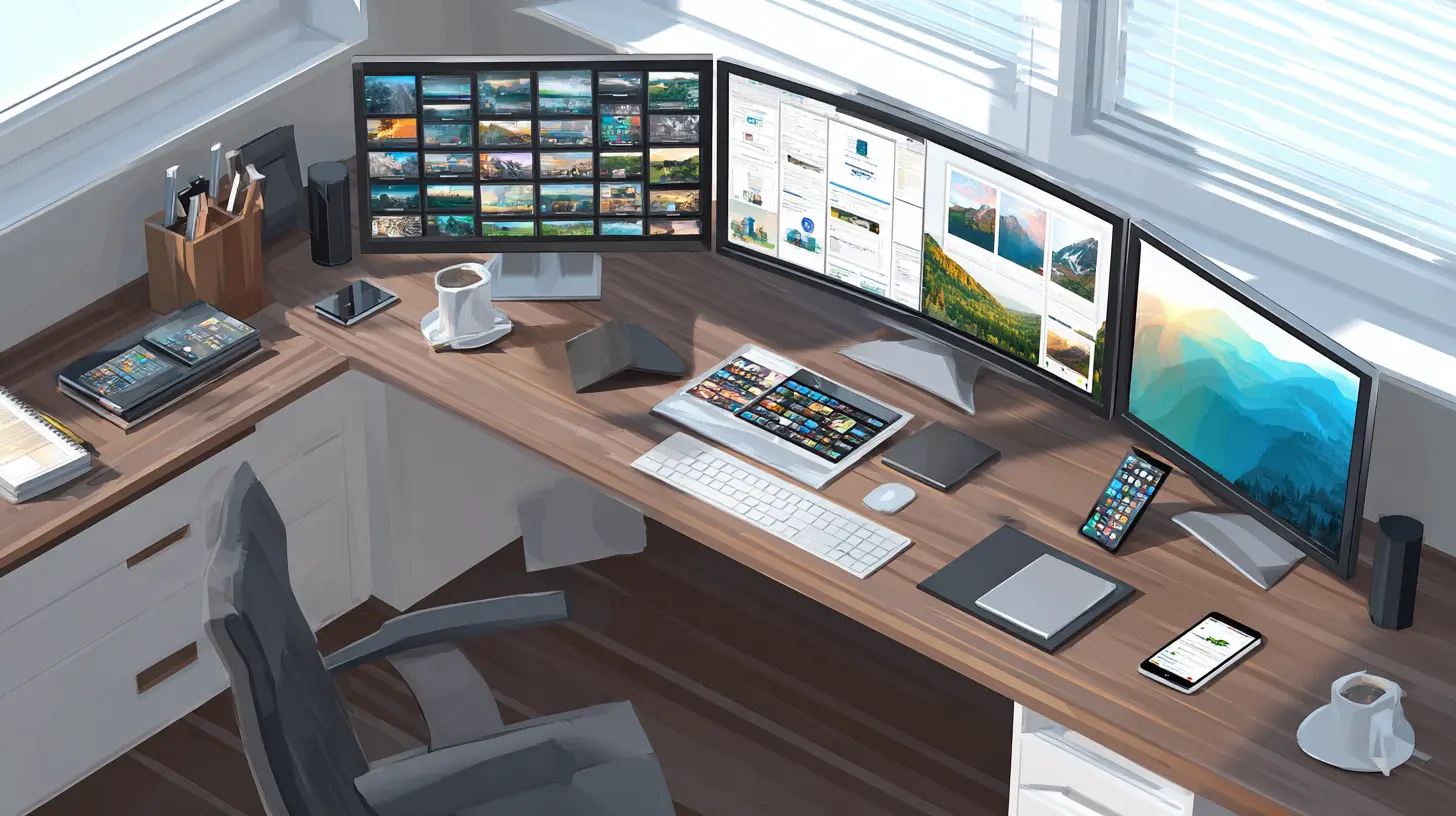
The fundamental reason behind the multi-screen movement is simple: our work has become fragmented. We do not write in isolation. We write while referencing sources, while checking messages, while monitoring dashboards, while comparing versions of documents. A single screen forces a constant shuffle between applications, a frantic alt-tabbing that breaks concentration and eats away at time. Multiple screens offer a way to keep context visible. They allow us to park a reference document on one side while we compose on the other, or keep a terminal window open while we watch a build pipeline run.But there is a deeper psychological pull at play. We are visual creatures, and our brains are wired to process spatial information. When we can physically turn our heads to see a different task, we offload some of the mental burden of remembering what is where. The screen becomes an extension of our workspace, like a physical desk with papers spread out in front of us. This is why a multi-screen setup feels more natural than a single screen, even if the total pixel count is the same. It is not just about having more room. It is about having room that is organized by position, not by time.
The rise of high-resolution displays has accelerated this trend. A 4K monitor can show a lot, but a single 4K monitor still forces you to manage windows within one physical space. Two 1440p monitors, side by side, give you distinct zones. You can dedicate one to communication and one to deep work without ever having to minimize a window. This separation of concerns is the real value proposition. It is not about showing more data. It is about reducing the friction of switching contexts.
The Hidden Costs of a Multi-Screen Life
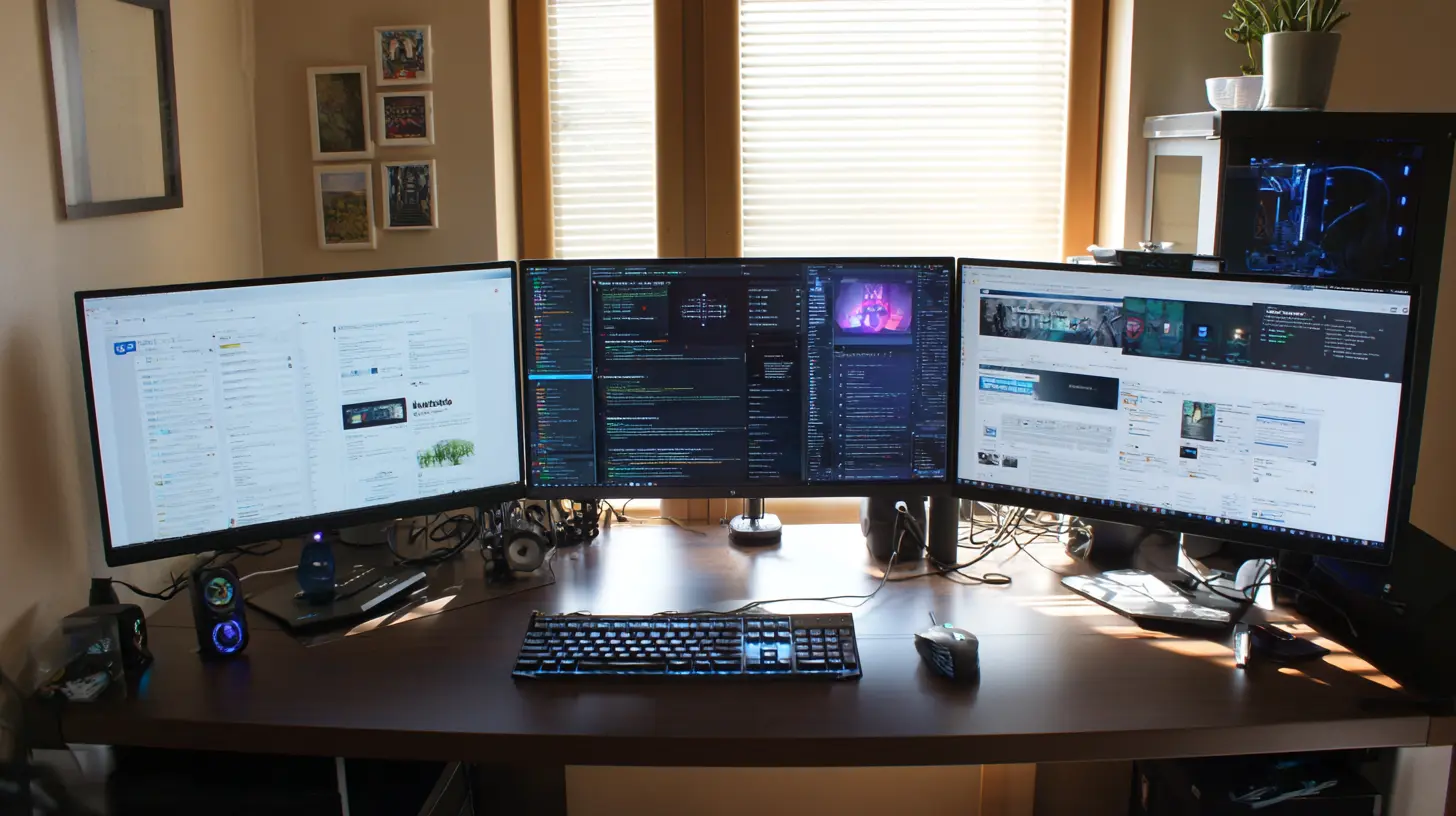
For all its benefits, the multi-screen workstation carries a price that is rarely discussed in the glossy reviews. The first cost is physical. Staring at a single screen already puts strain on the neck and eyes. Adding more screens increases the risk of awkward postures. If your monitors are not aligned properly, you will find yourself twisting your spine, tilting your head, or squinting at a panel that is too far away or too high. Over months and years, this leads to chronic pain in the neck, shoulders, and back. It is a slow, insidious tax on your health.The second cost is cognitive. While multiple screens can reduce context switching, they can also become a source of constant distraction. A screen dedicated to email or chat is a screen that is always showing you something new. The temptation to glance at it is almost irresistible. Researchers have long noted that attention is a finite resource, and every glance away from your primary task carries a cost. The very feature that makes multi-screen setups so useful, the persistence of information, can also make them a breeding ground for interruption.
The third cost is economic and spatial. Good monitors are not cheap, and a proper setup requires a desk that can accommodate them, a graphics card that can drive them, and a cable management system that can keep the chaos at bay. Many people underestimate the complexity of mounting three monitors on arms, routing cables cleanly, and ensuring that all displays have consistent color and brightness. The result is often a cluttered, half-finished setup that looks impressive in a photo but is uncomfortable to use for eight hours a day.
Designing Your Physical Layout for Comfort
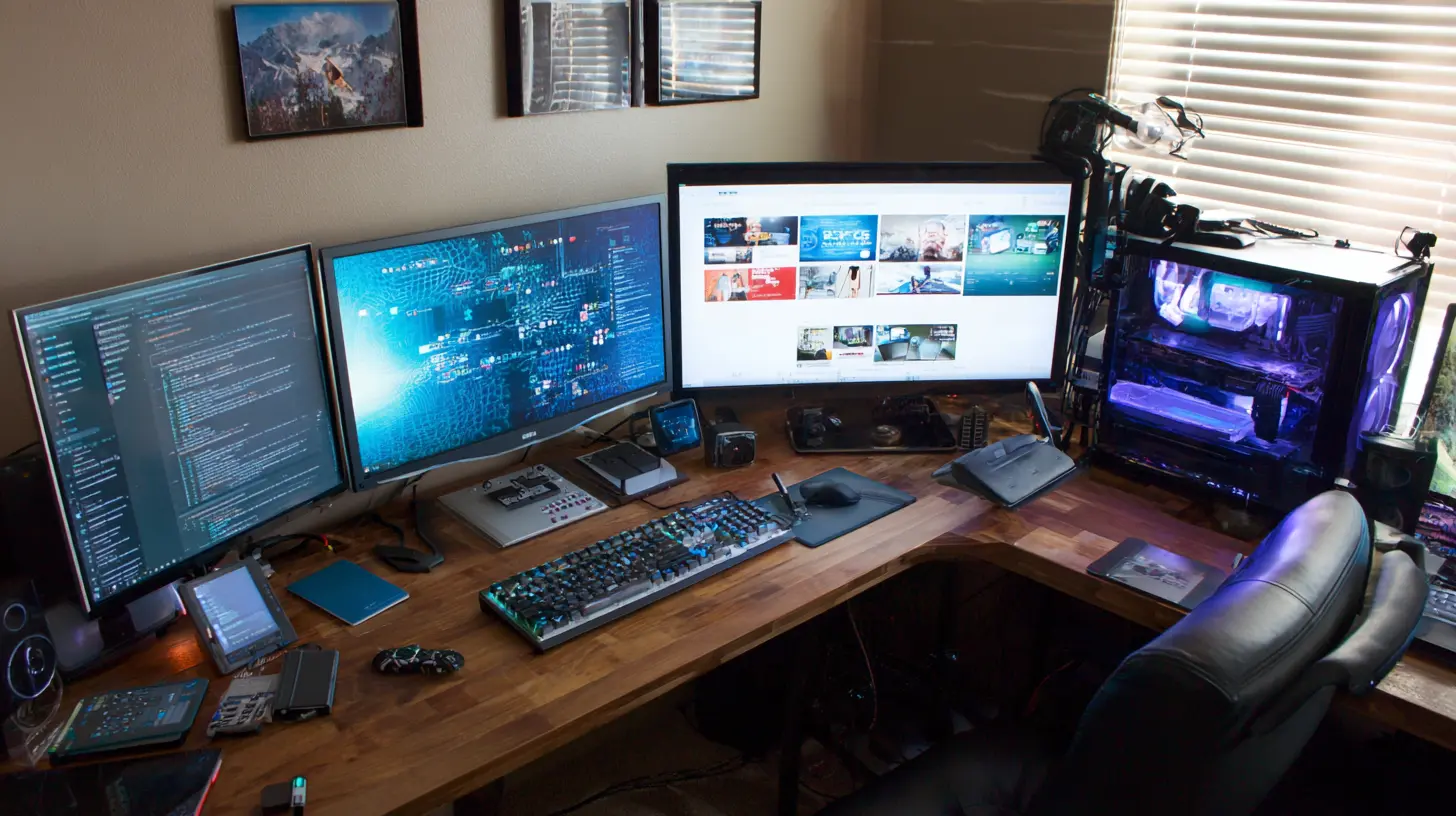
The first rule of multi-screen management is to prioritize your body over your ego. It is tempting to buy the largest monitors you can afford and line them up like a command center. But bigger is not always better, and more is not always more. The key is to think about how you actually work, not how you want your desk to look in a social media post.Start with your primary screen. This is the one you look at most often. It should be directly in front of you, at arm's length, with the top of the screen at or slightly below eye level. This is not a suggestion. It is a biomechanical requirement. If you are looking up at your main screen, you will eventually develop neck pain. If you are leaning forward to see it, you will develop back pain. The primary screen is the anchor of your setup, and everything else should be arranged around it.
Secondary screens should be placed at an angle, not flat and parallel to your primary screen. The ideal is a slight curve in your desk arrangement, with the secondary screens angled inward so that you can see them with a simple turn of your head, not a full rotation of your torso. If you use three screens, the two side screens should be turned inward significantly, almost facing you. This creates a cockpit-like feel and reduces the distance your eyes have to travel.
Height is another critical factor. Many people place their monitors on the desk surface and then stack books or boxes under them to raise them up. This is a temporary fix that often fails. The better solution is a monitor arm. A good arm allows you to adjust height, tilt, and rotation precisely. It also frees up desk space, which is a hidden benefit. If you are serious about a multi-screen setup, invest in arms. They are not expensive relative to the cost of the monitors themselves, and they make a world of difference in comfort.
The Software Side of Managing Multiple Displays
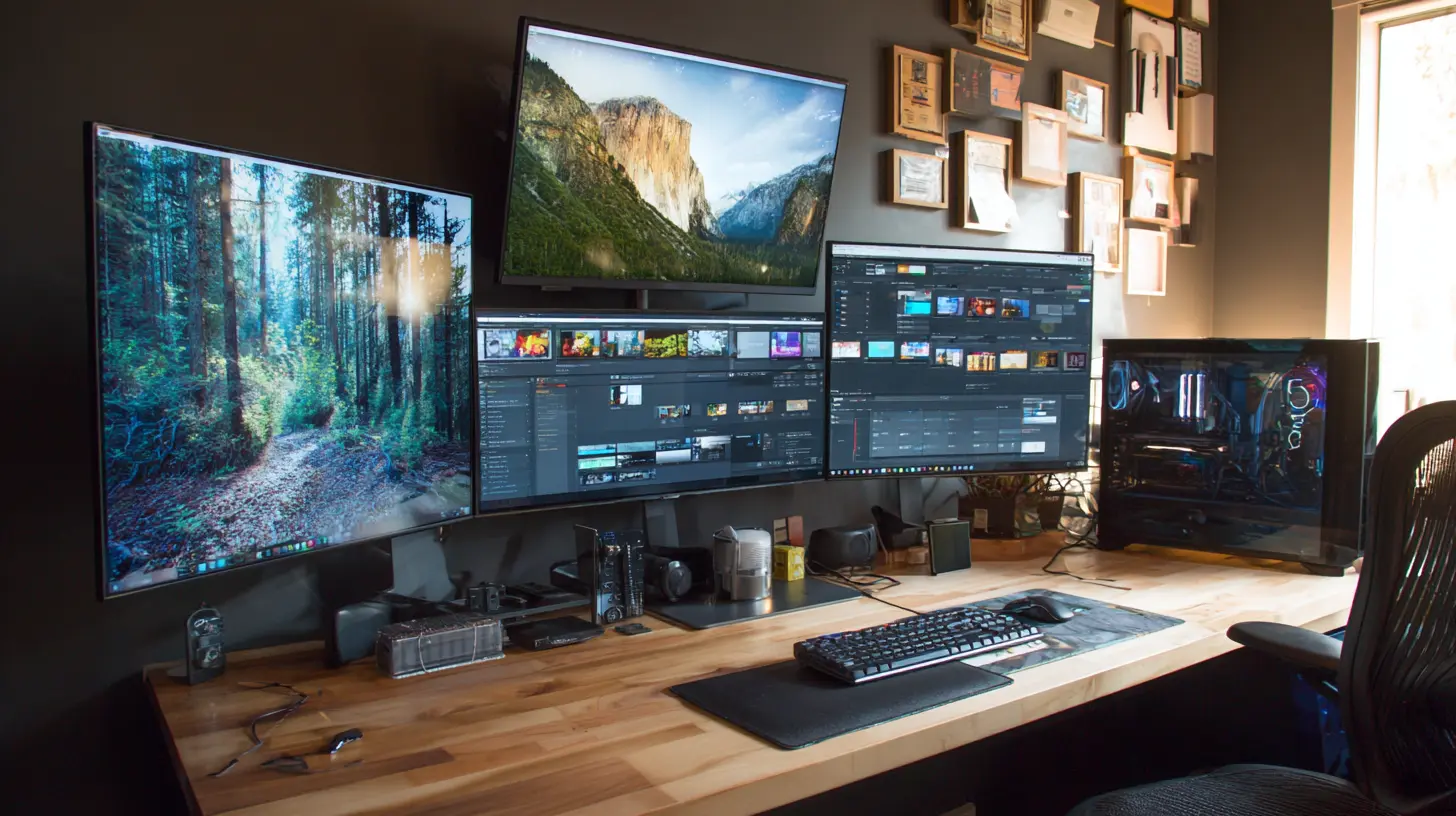
Hardware is only half the battle. The software you use to manage your windows is just as important, and this is where many people fall short. The default window management tools in Windows and macOS are rudimentary. They let you snap windows to the left or right half of a screen, but they do not handle the complexity of a three-monitor setup well. You need a dedicated tool.On Windows, tools like DisplayFusion or PowerToys FancyZones give you the ability to define custom zones on each monitor. You can create a layout where your main monitor has a large central zone for your primary application and smaller zones on the sides for secondary tools. You can then assign keyboard shortcuts to move windows into these zones instantly. This turns your multi-screen setup from a chaotic collection of windows into a structured workspace.
On macOS, the situation is a bit different. The built-in Mission Control and Spaces are powerful, but they are not designed for multi-monitor workflows in the same way. Tools like Rectangle or Magnet bring Windows-style snapping to the Mac, but they still do not handle the complexity of different layouts on different screens. The key is to think of each monitor as a separate workspace with a specific purpose, not as an extension of the same desktop.
A common mistake is to treat all monitors as one giant canvas. You drag a window across the boundary between screens and expect it to behave naturally. But the boundary is not natural. It is a physical seam that your eyes have to cross. Instead of dragging windows across screens, you should dedicate each screen to a category of work. One screen for communication, one for code, one for documentation. This way, you never have to drag anything across a seam. You just look at the screen that holds what you need.
The Role of Resolution and Scaling
Not all pixels are created equal. A 27-inch 1080p monitor and a 27-inch 4K monitor have the same physical size, but the 4K monitor has four times the pixel density. This matters a great deal in a multi-screen setup. If you mix monitors with different resolutions and scaling factors, you will end up with text that is different sizes on different screens. This is not just an aesthetic annoyance. It causes your eyes to constantly refocus, which leads to fatigue.The best practice is to use monitors with the same resolution and the same physical size, or at least the same pixel density. If you cannot do that, you need to adjust the scaling settings so that the effective size of text and UI elements is consistent across all screens. On Windows, this is done through the Display Settings. On macOS, it is done through the Displays preference pane. It takes a little trial and error, but it is worth the effort.
Another consideration is the refresh rate. If you use one monitor at 60Hz and another at 144Hz, the difference will be noticeable, especially if you are moving windows between them. The cursor will feel smooth on one screen and slightly stuttery on the other. This is not a dealbreaker, but it is a source of subtle discomfort. If you are a gamer or a video editor, you will want all your monitors to have the same refresh rate. If you are doing office work, it matters less, but it is still worth considering.
Managing Distraction in a Multi-Screen World
The greatest challenge of a multi-screen workstation is not technical. It is psychological. The more screens you have, the more opportunities there are for something to grab your attention. A notification pops up on the communication screen. A new email slides in on the mail screen. A chart updates on the data screen. Each of these is a tiny interruption, and the cumulative effect is devastating for deep work.The solution is not to remove screens, but to manage them with intention. The first step is to turn off notifications on all but your primary communication screen. If you are in a flow state, you do not need to know about a new message the instant it arrives. You need to check it when you are ready. This requires discipline, but it is the single most effective change you can make.
The second step is to use your screens as a physical boundary for your attention. When you are doing focused work, you should only be looking at the primary screen. The secondary screens should be showing static reference material, not dynamic feeds. If you need to check your email or chat, you should consciously move your gaze to the communication screen, do the check, and then move your gaze back. This is a deliberate act, not a reflexive one.
Some people go further and use a technique called "screen fasting." They close all secondary screens during certain hours of the day, forcing themselves to work with only the primary display. This is extreme, but it can be effective for breaking the habit of constant checking. The idea is not to abandon the multi-screen setup, but to use it as a tool rather than a master.
Real-World Examples of Effective Setups
Let us look at a few concrete scenarios to illustrate the principles in action.A software developer might have three monitors. The primary monitor in the center runs the code editor. The left monitor runs the terminal and the build output. The right monitor runs the documentation, a browser with the API reference, and the test results. The developer has set up FancyZones on Windows to create specific zones on each monitor. The code editor takes up the full height of the center monitor. The terminal has a large zone on the left, and the documentation has a large zone on the right. This setup allows the developer to see code, output, and references simultaneously without any window shuffling.
A financial analyst might have a similar three-monitor setup, but with different content. The center monitor shows the main spreadsheet or trading platform. The left monitor shows a live news feed and a chat window for the team. The right monitor shows a secondary data source, like a charting tool or a market data terminal. The analyst has turned off all notifications except for the chat window, and has set the news feed to update only when manually refreshed. This reduces the noise while keeping the necessary information visible.
A video editor might use a two-monitor setup, but with a twist. The primary monitor is a high-quality 4K display for the timeline and the preview. The secondary monitor is a smaller, color-calibrated display for the color grading panel and the audio mixer. The editor has placed the secondary monitor at a slight downward angle, so that it is easier to see both the preview and the controls without moving the head too much. This is a case where the physical arrangement is tailored to the specific workflow.
Common Mistakes and Misconceptions
One of the most common mistakes is buying a mix of monitors without thinking about bezels. The bezel is the frame around the screen. When you place two monitors side by side, the bezels create a gap in the middle of your field of view. This is unavoidable, but you can minimize its impact by choosing monitors with thin bezels. Some people try to ignore the gap, but it is always there. The best approach is to accept it and design your layout so that the gap falls between your primary and secondary areas of focus, not in the middle of a task.Another misconception is that you need a top-of-the-line graphics card to run multiple monitors. This is only true if you are doing 3D rendering or gaming across all screens. For office work, web browsing, and coding, even a modest integrated GPU can handle two or three 4K displays. The bottleneck is usually the number of video outputs on your computer, not the processing power. Before you buy a new GPU, check how many displays your current setup can drive.
A third mistake is neglecting cable management. A multi-screen setup generates a lot of cables, and if they are not managed, they become a tangled mess that is hard to clean and easy to trip over. Use cable ties, cable trays, and monitor arms with built-in cable routing. This is not just about aesthetics. It is about airflow and ease of maintenance. When you need to swap a monitor or move your desk, you will thank yourself for having organized cables.
The Future of Multi-Screen Workstations
The trend toward multiple screens is not going to reverse. If anything, it is accelerating. But the form factor is changing. Ultrawide monitors, which are essentially two monitors fused into one, are becoming popular because they eliminate the bezel gap. A 49-inch ultrawide monitor can replace two 27-inch monitors, providing a seamless view of your workspace. The tradeoff is that you lose the physical separation that some people find useful. With an ultrawide, you have to rely on software to create zones, and you cannot physically turn your head to a different screen.Virtual reality and augmented reality headsets are also entering the picture. Some companies are experimenting with virtual monitors that can be placed anywhere in your field of view. This is an exciting possibility, but the technology is not yet mature enough for daily professional use. The resolution is not high enough, and wearing a headset for eight hours is not comfortable for most people. For the foreseeable future, physical monitors will remain the standard.
The rise of multi-screen workstations is a story about human adaptation. We have taken a tool that was designed for a single focus and bent it to serve our need for multiple concurrent contexts. The challenge is to manage this power without being overwhelmed by it. The answer lies in deliberate design, both physical and digital. Plan your layout around your body. Use software to create structure. Set boundaries for your attention. And remember that the goal is not to have the most impressive desk. The goal is to do your best work with the least friction.
A multi-screen workstation, when managed well, becomes an extension of your mind. It holds your thoughts in place, keeps your references close, and lets you move between ideas with a glance. But it is a tool, not a master. The screens are there to serve you, not to demand your attention. Keep them organized, keep them comfortable, and keep them in their place. Then, and only then, will they truly earn their space on your desk.
all images in this post were generated using AI tools
Category:
Home Office TechAuthor:

Gabriel Sullivan